Fast Inference with Lightning LoRAs
Use --fast to generate images 10x faster with Lightning distillation LoRAs. Side-by-side comparisons of text rendering, editing, and outpainting quality at 4, 8, and 50 steps.
The --fast flag applies a Lightning distillation LoRA that reduces inference from 40-50 steps to just 4 or 8 — a 10x speedup with minimal quality loss. This guide shows exactly what you gain and what you trade off.
Prerequisites
Install the Lightning LoRA alongside your base model:
How --fast works
Lightning distillation — first popularized with SDXL-Lightning — trains a LoRA that teaches the model to produce good output in far fewer denoising steps. The --fast flag handles the details: it loads the Lightning LoRA, sets guidance to 1.0 (required by the distillation), and adjusts the noise schedule.
The only supported values are --fast (4 steps) and --fast 8 (8 steps) — these match the distillation training. Other step counts won’t produce good results. You can’t combine --fast with --lora since the Lightning LoRA occupies that slot. If you try, modl will error with a clear message.
Guidance is locked to 1.0 in —fast mode — the distillation was trained this way and higher values produce artifacts. If you need to tweak guidance, use normal mode instead.
Speed and VRAM
All timings measured on an RTX 4090 (24 GB) at 1024x1024 resolution with the model already loaded (warm start). First-run times include model loading and will be significantly longer.
--fast 88~15s~21 GB --fast4~8s~21 GB --fast 88~15s~21 GB --fast4~10s~21 GB VRAM is slightly higher with —fast because the Lightning LoRA (~850 MB) is loaded alongside the base model weights.
Why Klein 9B and Z-Image Turbo don’t need --fast
Not all fast models work the same way. Qwen-Image is a full-precision model designed for 50 steps — --fast bolts on a Lightning LoRA to make it work at 4. Klein 9B and Z-Image Turbo were distilled at training time — speed is baked into the weights, no LoRA needed. That’s also why they’re lighter on VRAM.
The trade-off: Qwen with --fast gives you Klein/Turbo-like speeds while keeping Qwen’s quality advantages — especially text rendering, which neither Klein nor Z-Image Turbo can match reliably.
Text rendering: normal vs --fast
Qwen-Image 2512 is the best open model for text rendering. All comparisons below use the same seed per prompt and are generated at 1024x1024.
Prompt 1: Coffee shop chalkboard
“A coffee shop chalkboard sign reading ‘Today’s Special: Oat Milk Latte $4.50‘“
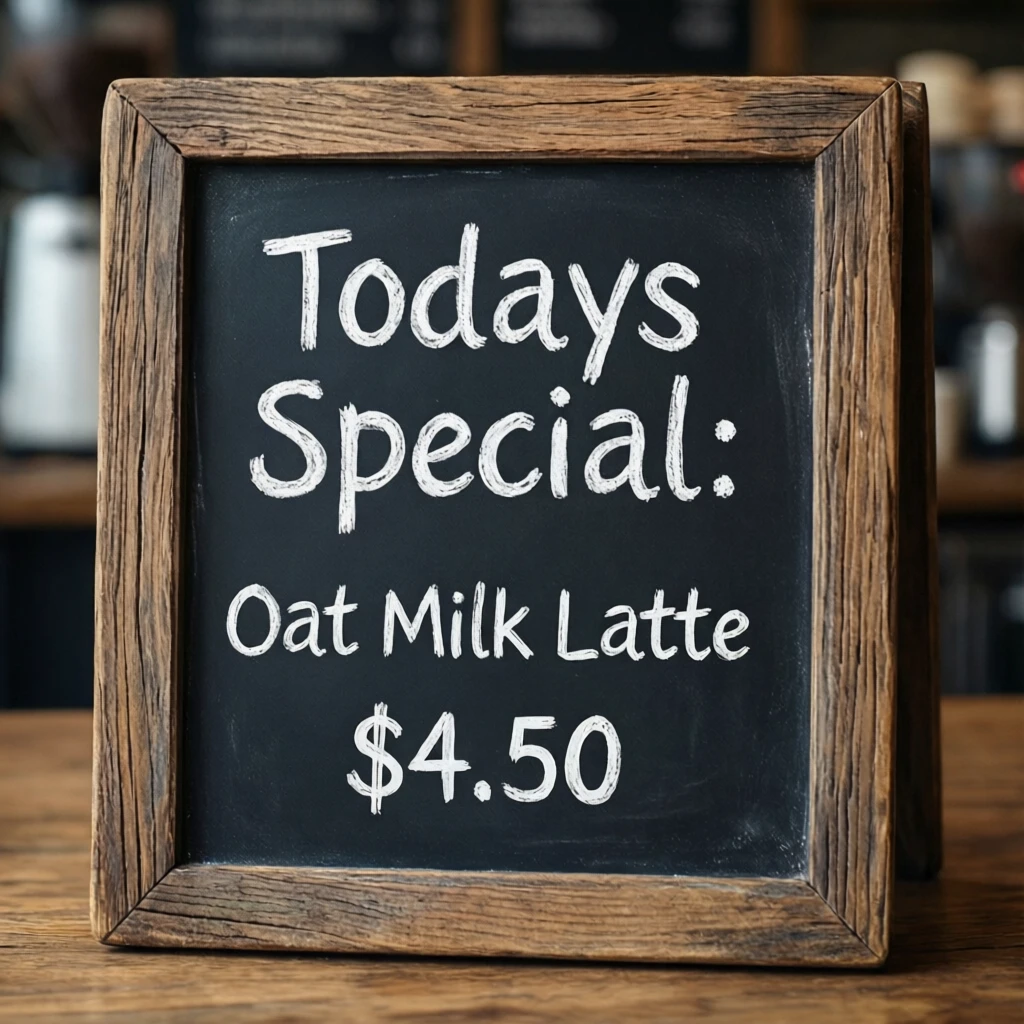
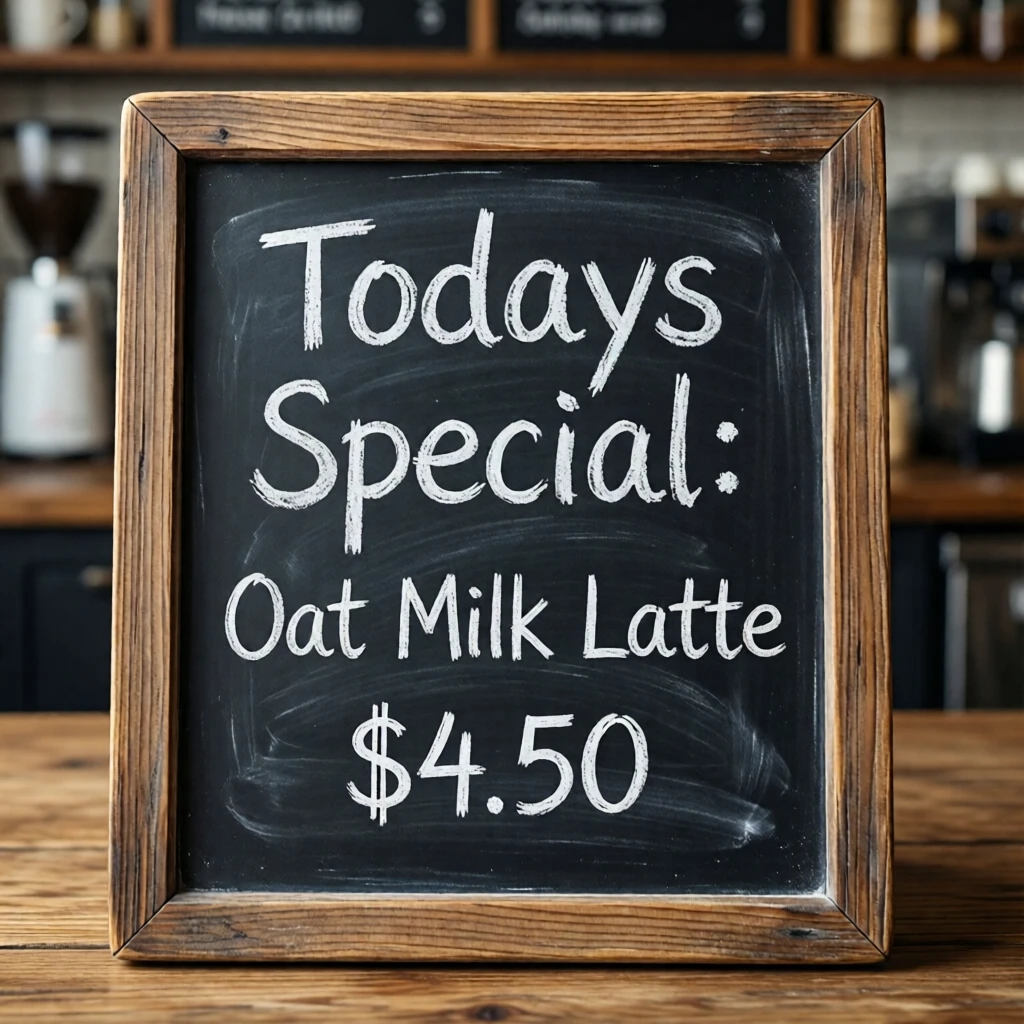
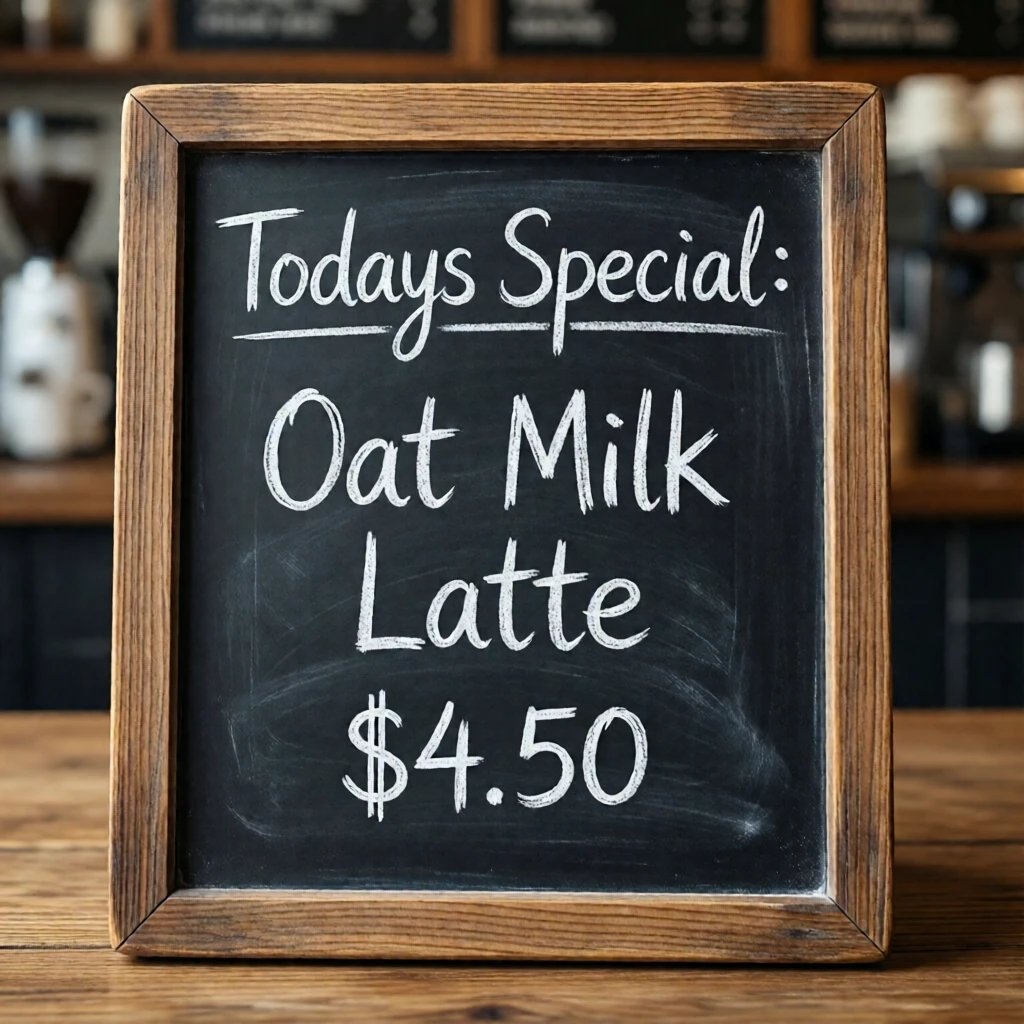
Text rendering stays legible down to 4 steps. Some fine detail softens.
Prompt 2: Graffiti wall
“Colorful street graffiti on a brick wall that reads ‘DREAM BIG’ in bold bubble letters”
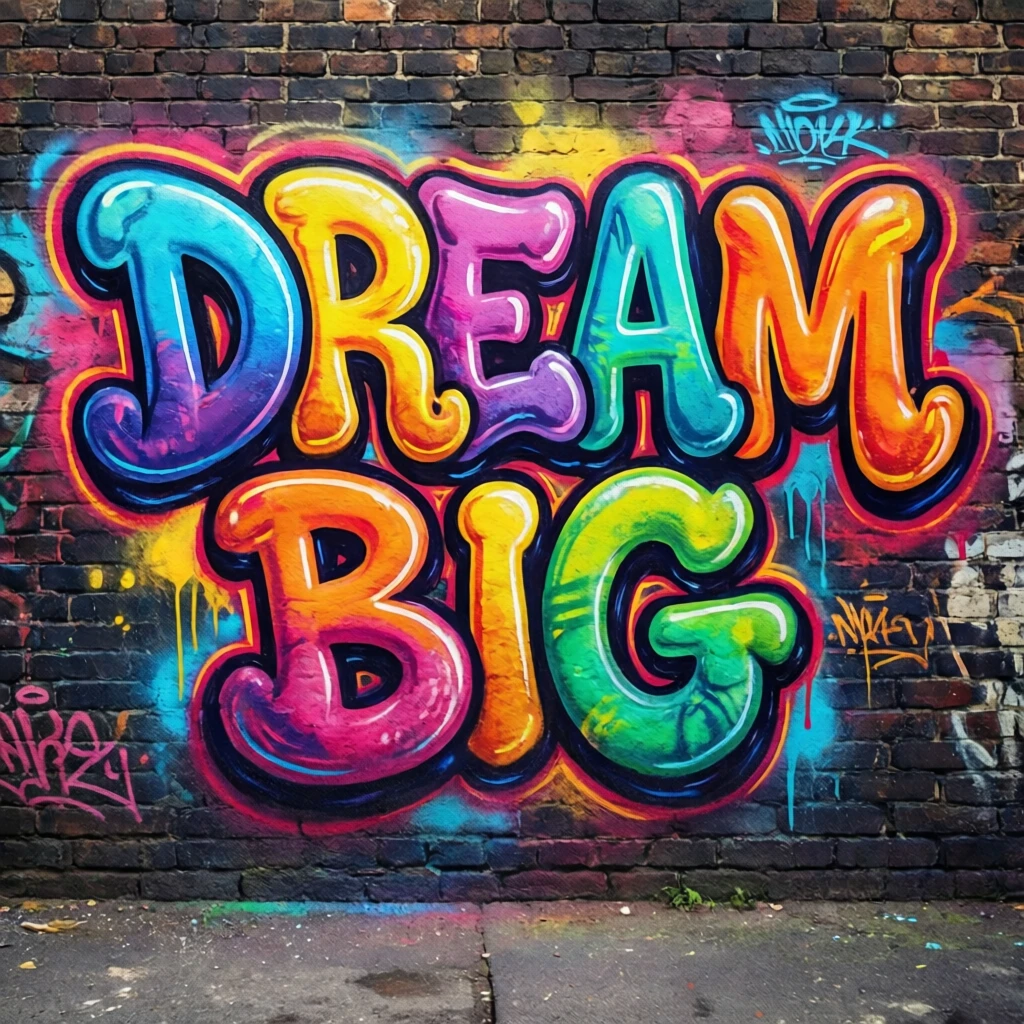


Bold text like graffiti holds up well even at 4 steps.
Prompt 3: Neon sign
“A neon sign at night reading ‘OPEN 24/7’ in glowing pink and blue”
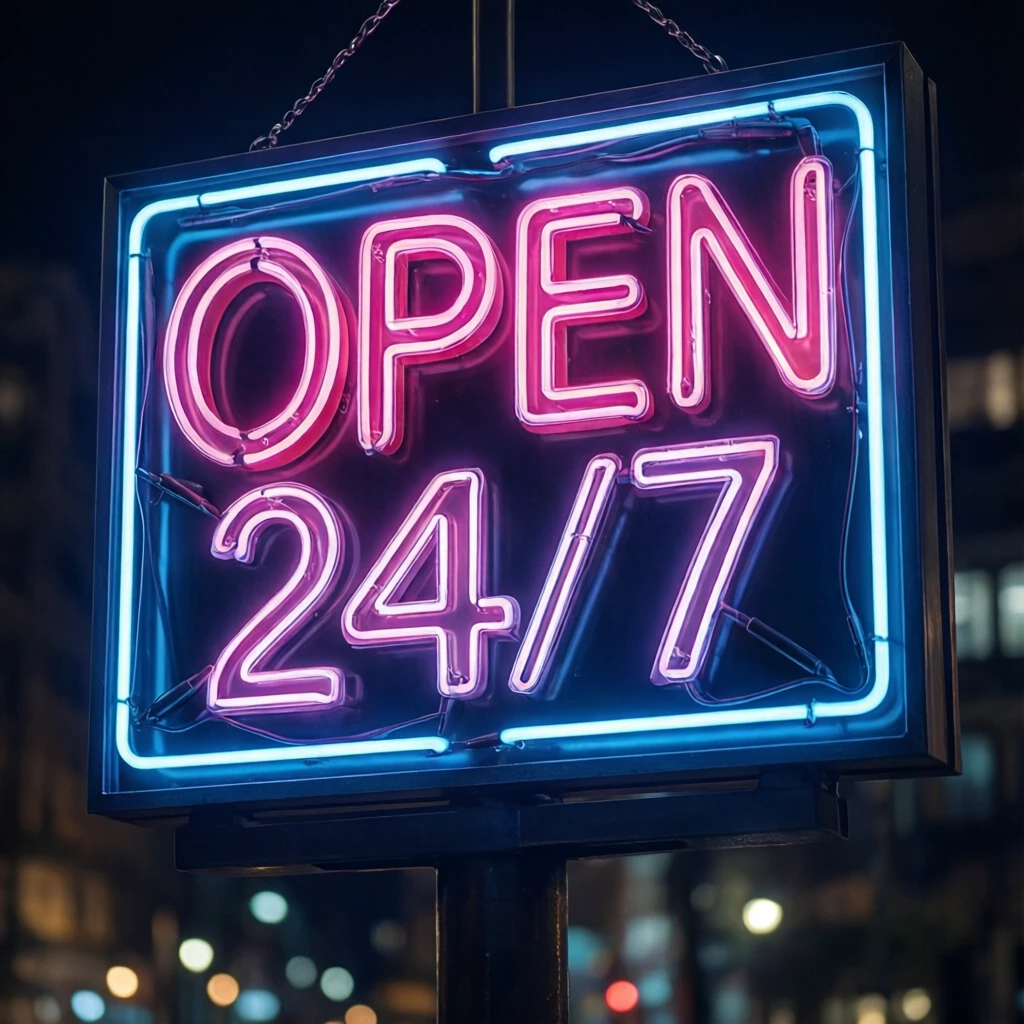
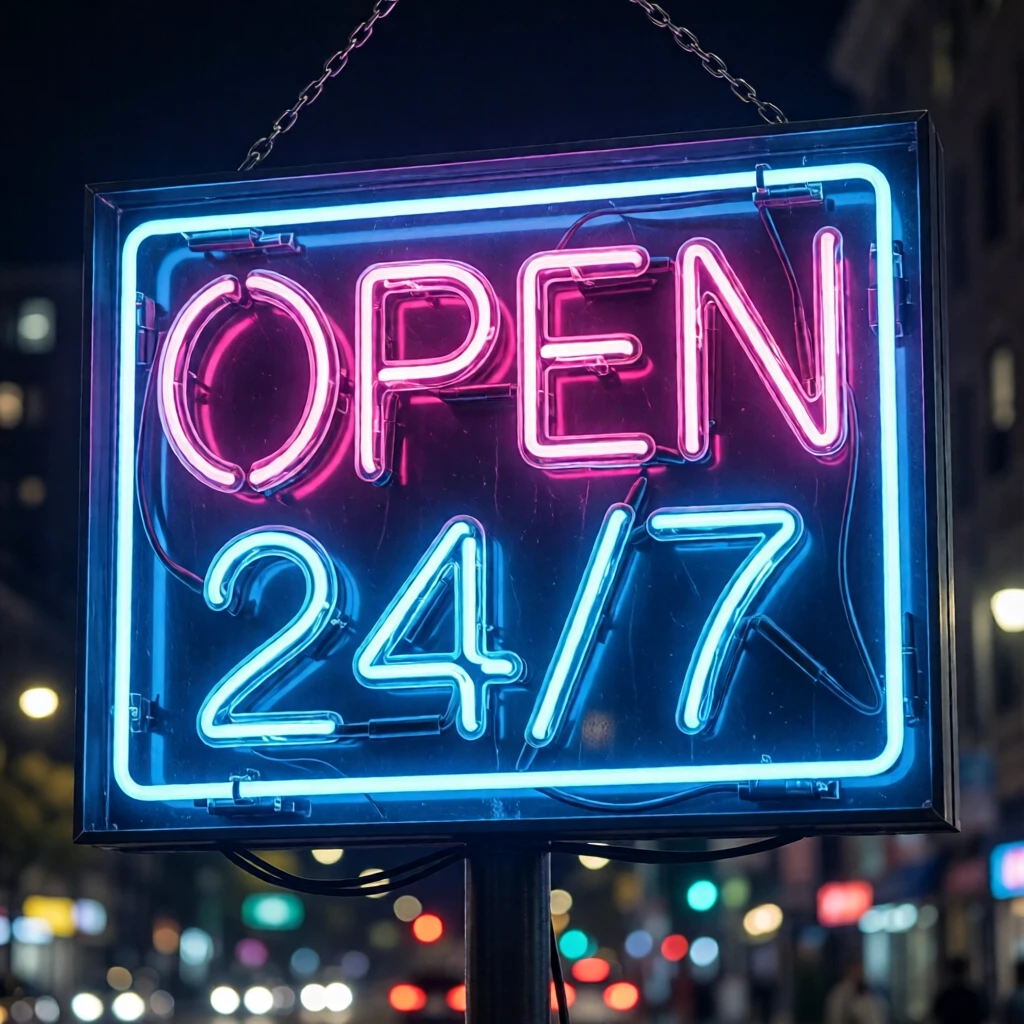
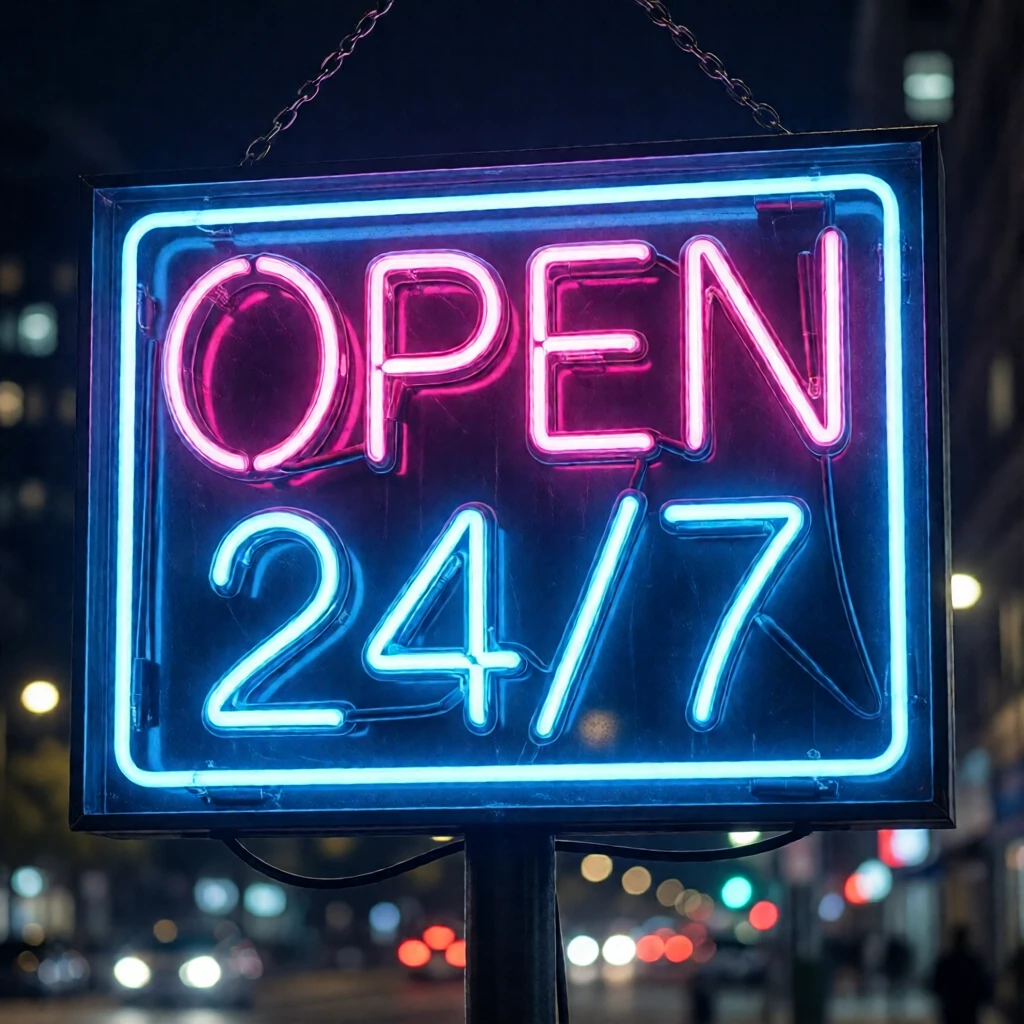
Neon glow effects are well-preserved. Character shapes stay accurate.
Prompt 4: Movie poster
“A vintage movie poster with the title ‘THE LAST VOYAGE’ and subtitle ‘Coming Summer 2026‘“



Dense text with multiple lines. Smaller subtitle text may degrade at 4 steps — use --fast 8 for text-heavy prompts.
Comparison: Z-Image Turbo
The same prompts on Z-Image Turbo — natively fast at 4 steps, no Lightning LoRA needed, and lighter on VRAM (~12 GB). Text rendering is less reliable than Qwen but the image quality is strong.
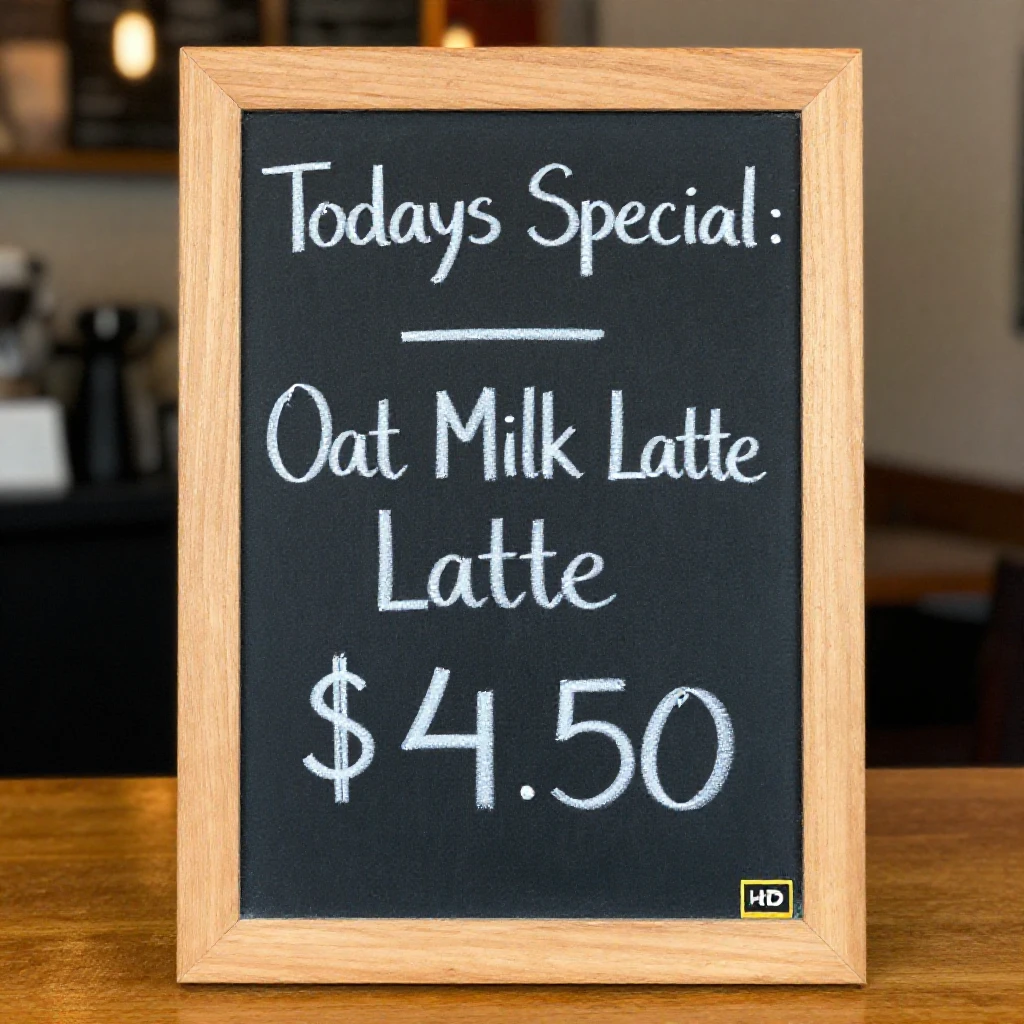

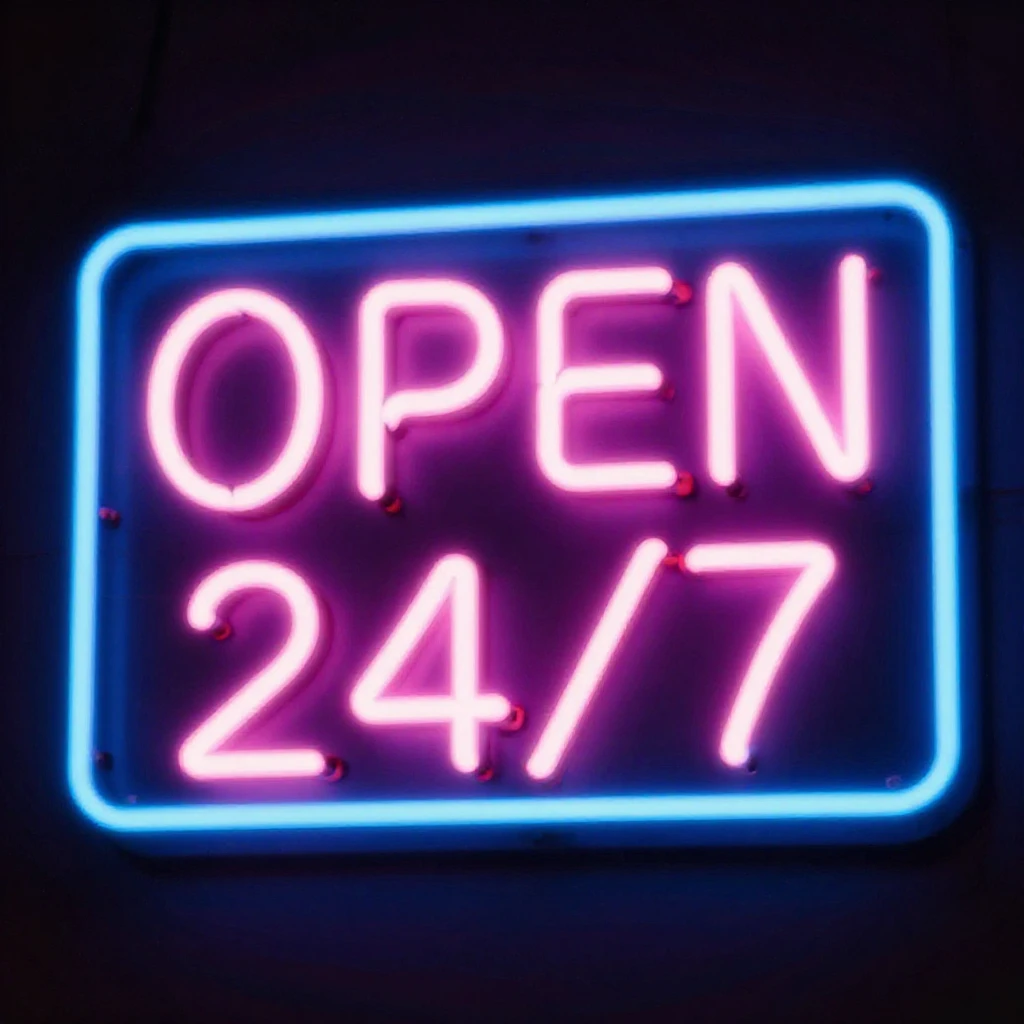
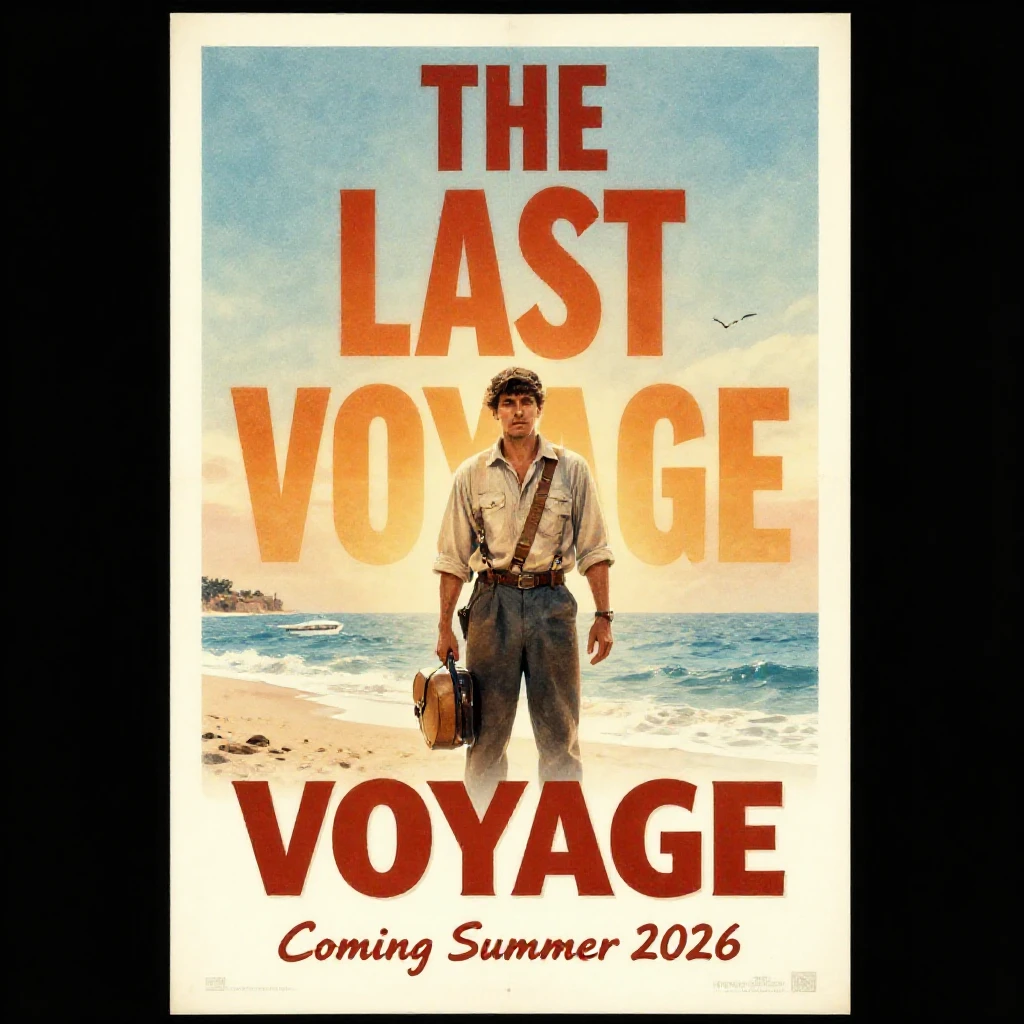
Z-Image Turbo: fast and lightweight but less accurate text. Use Qwen-Image when legible text matters.
General quality: across models
How does Qwen + --fast compare to natively-fast models for non-text prompts? All images at 1024x1024, same seed per prompt.
Portrait
“Professional headshot of a woman with short hair, studio lighting, neutral background”
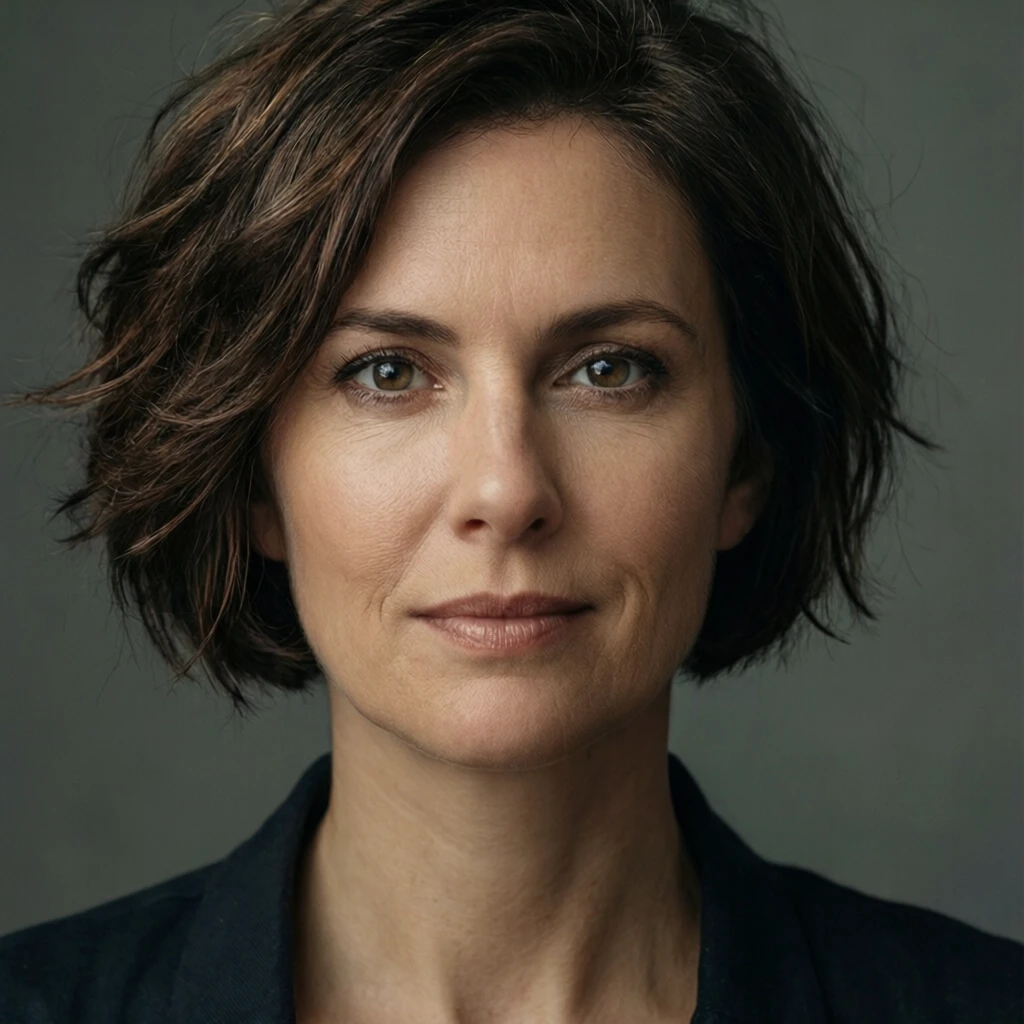
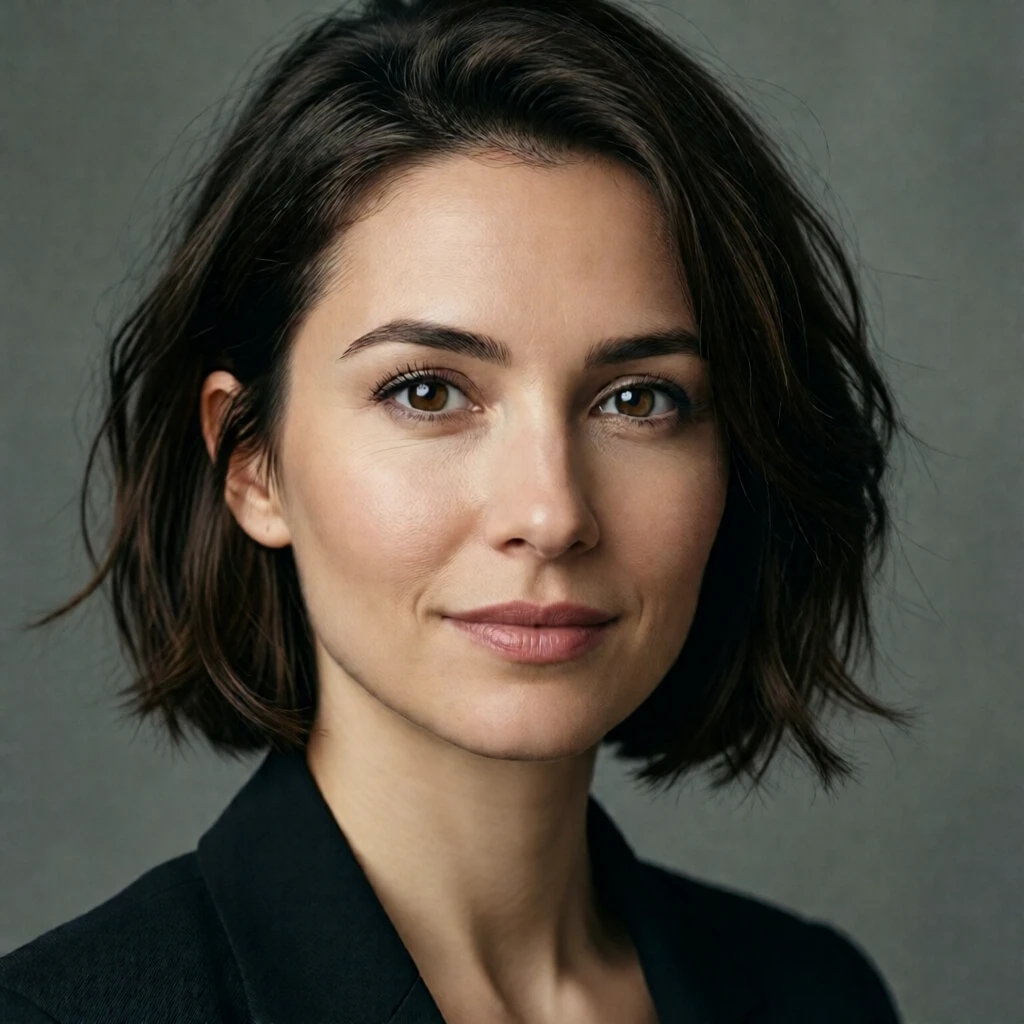


All models produce high-quality portraits at 4 steps. Style differences are model-specific, not speed-related.
Product shot
“A luxury watch on a marble surface, dramatic lighting”
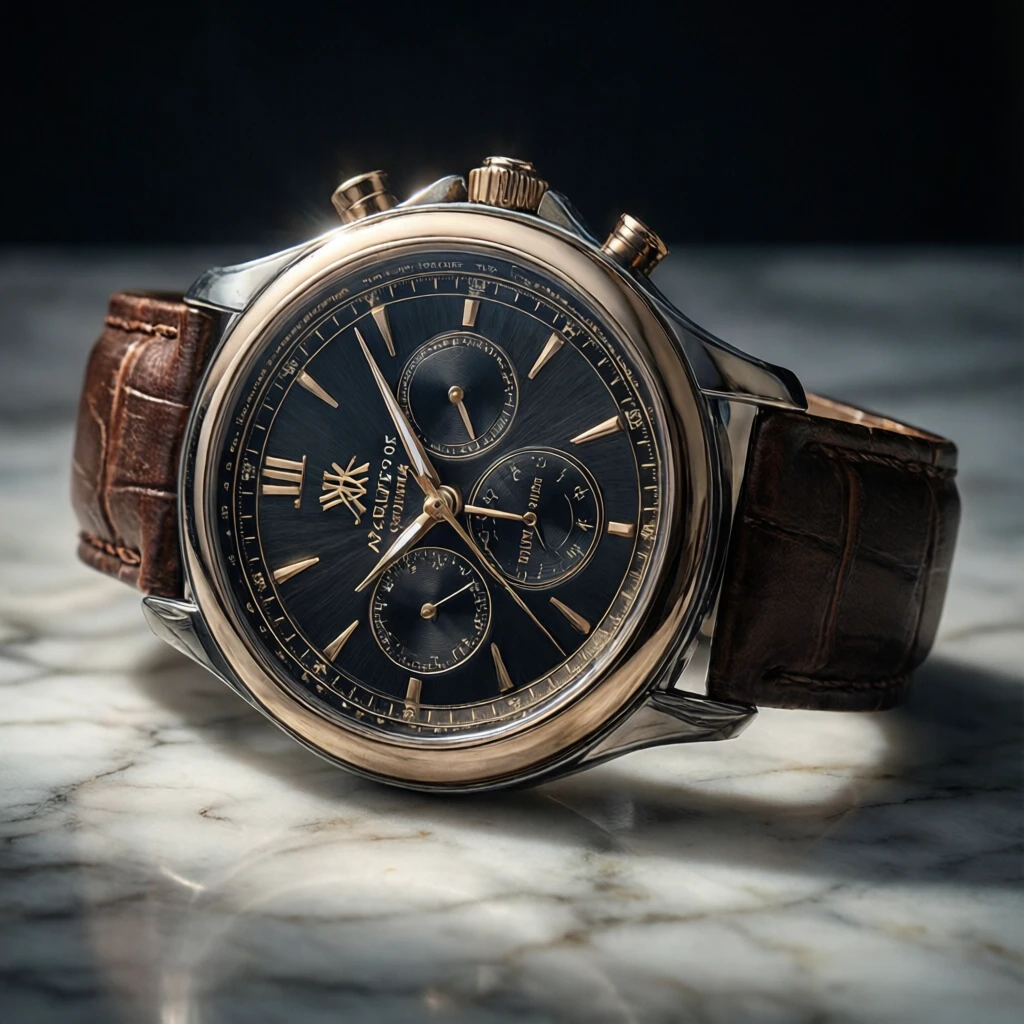
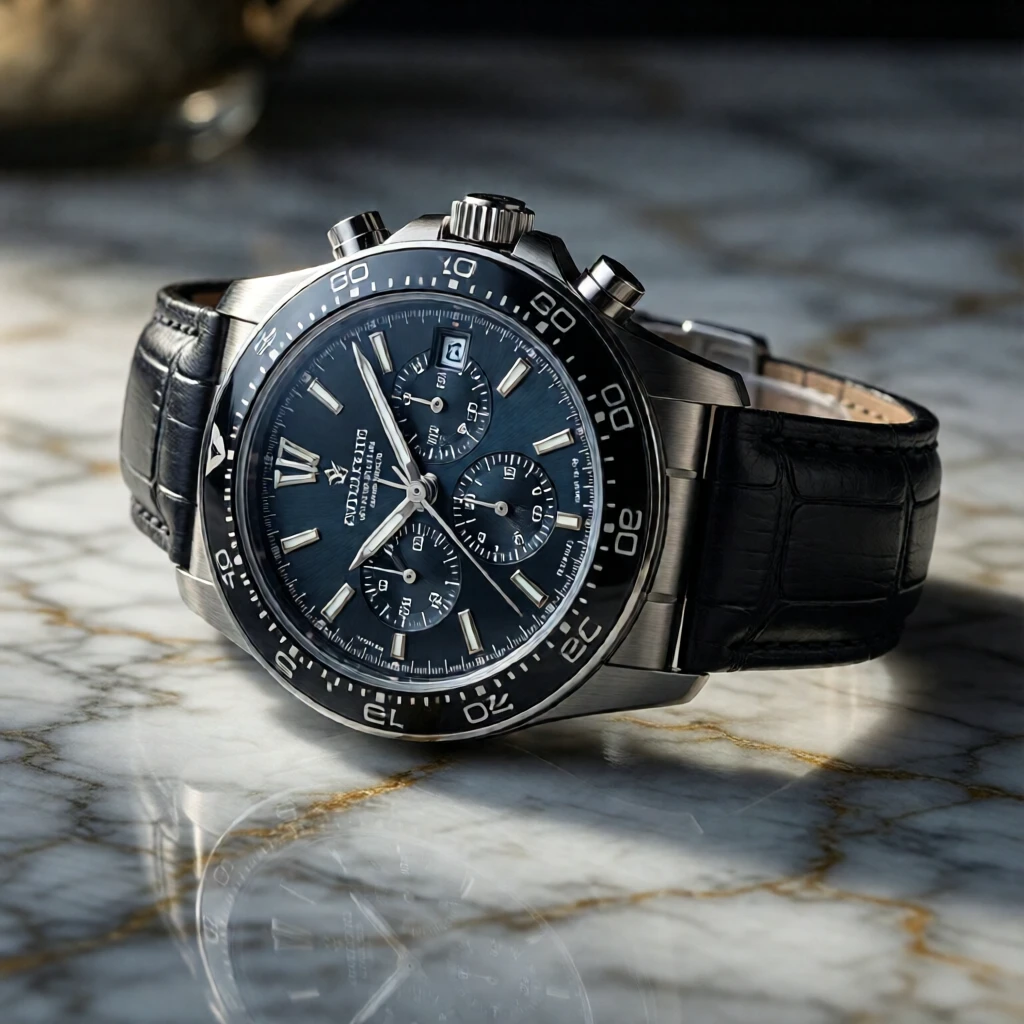
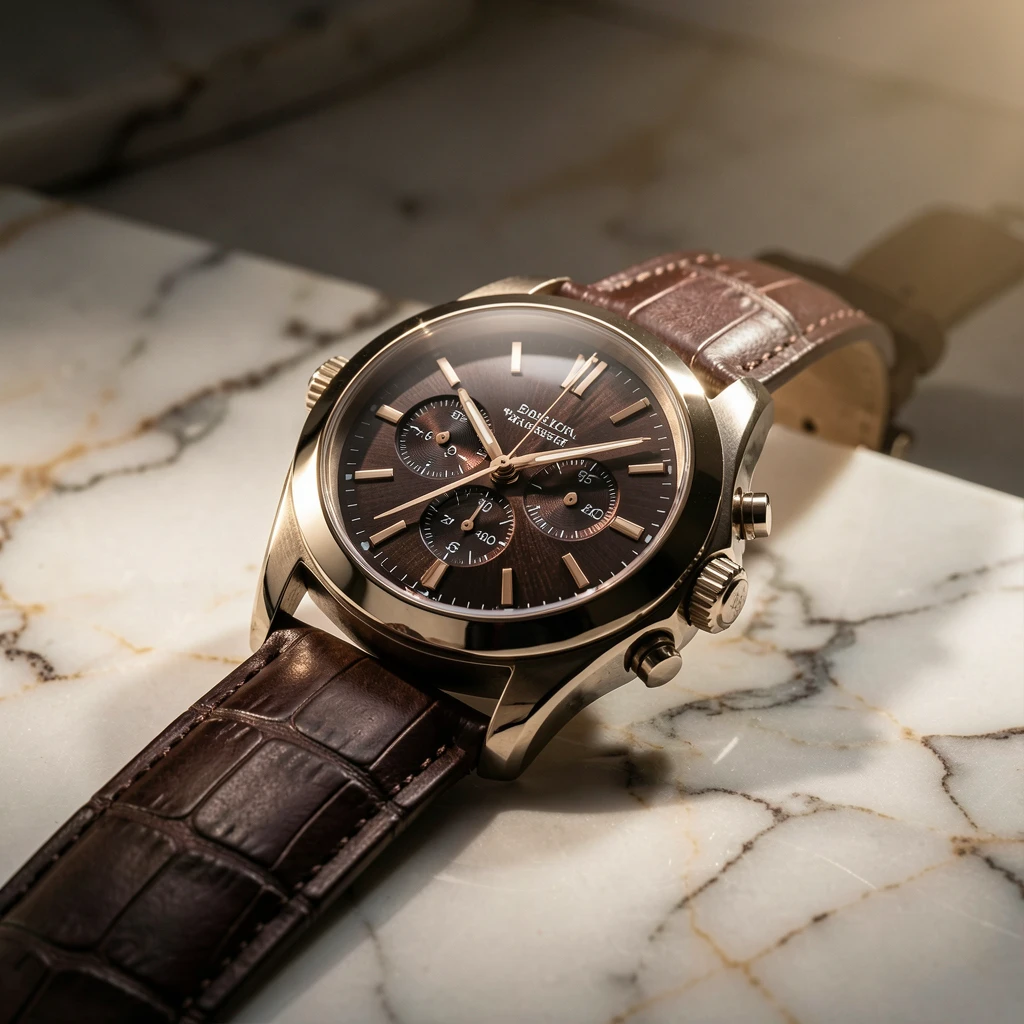
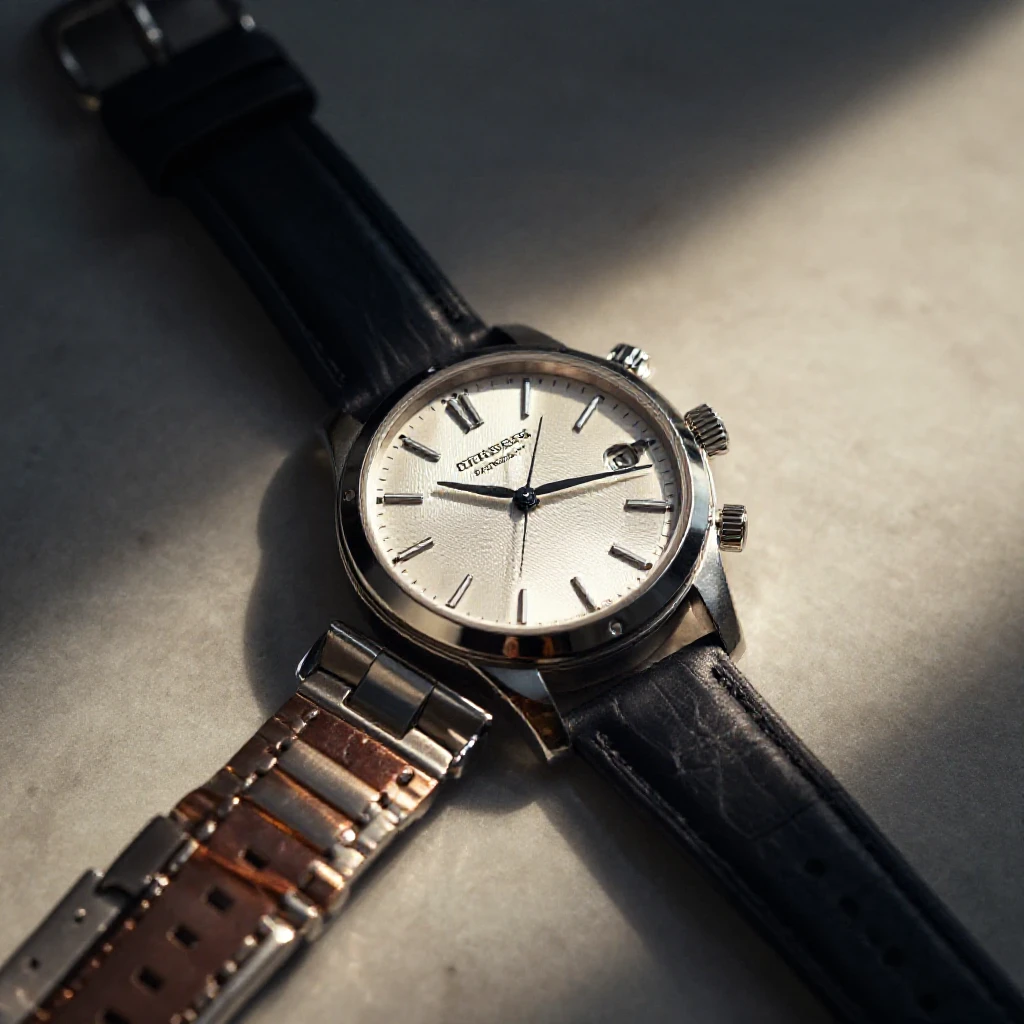
For product photography without text, all fast models deliver strong results.
Editing: fast vs normal
--fast works with modl edit too. Same Lightning approach — dramatically faster with minimal quality loss.
Object replacement
“Replace the sneaker with vintage leather boots”
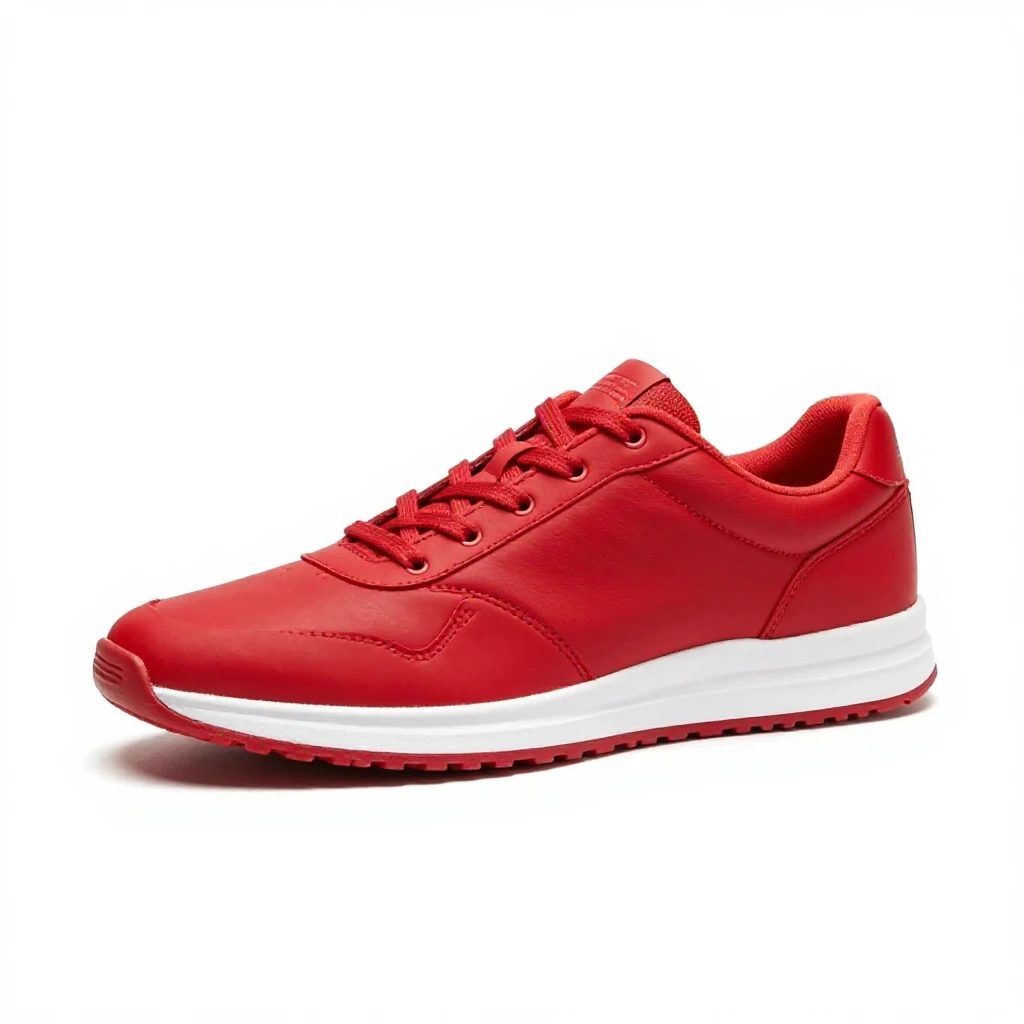
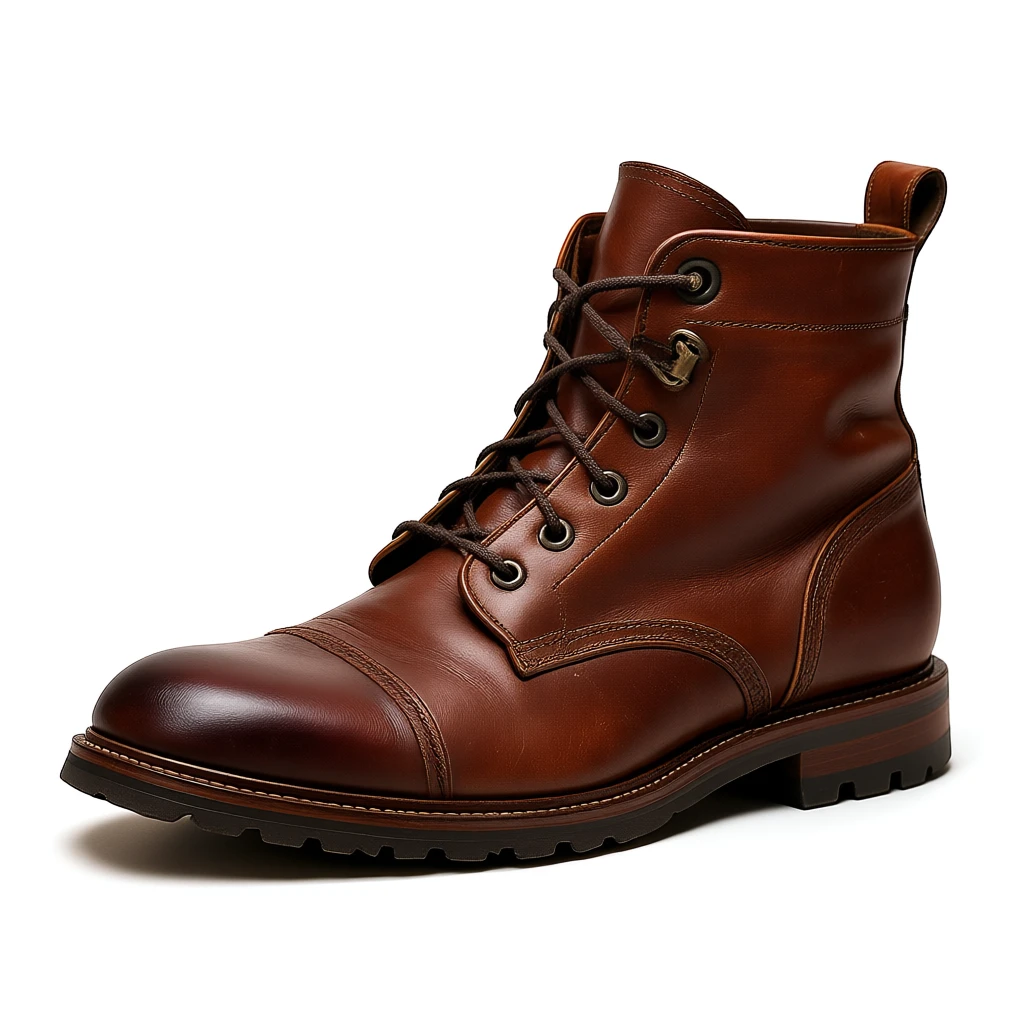
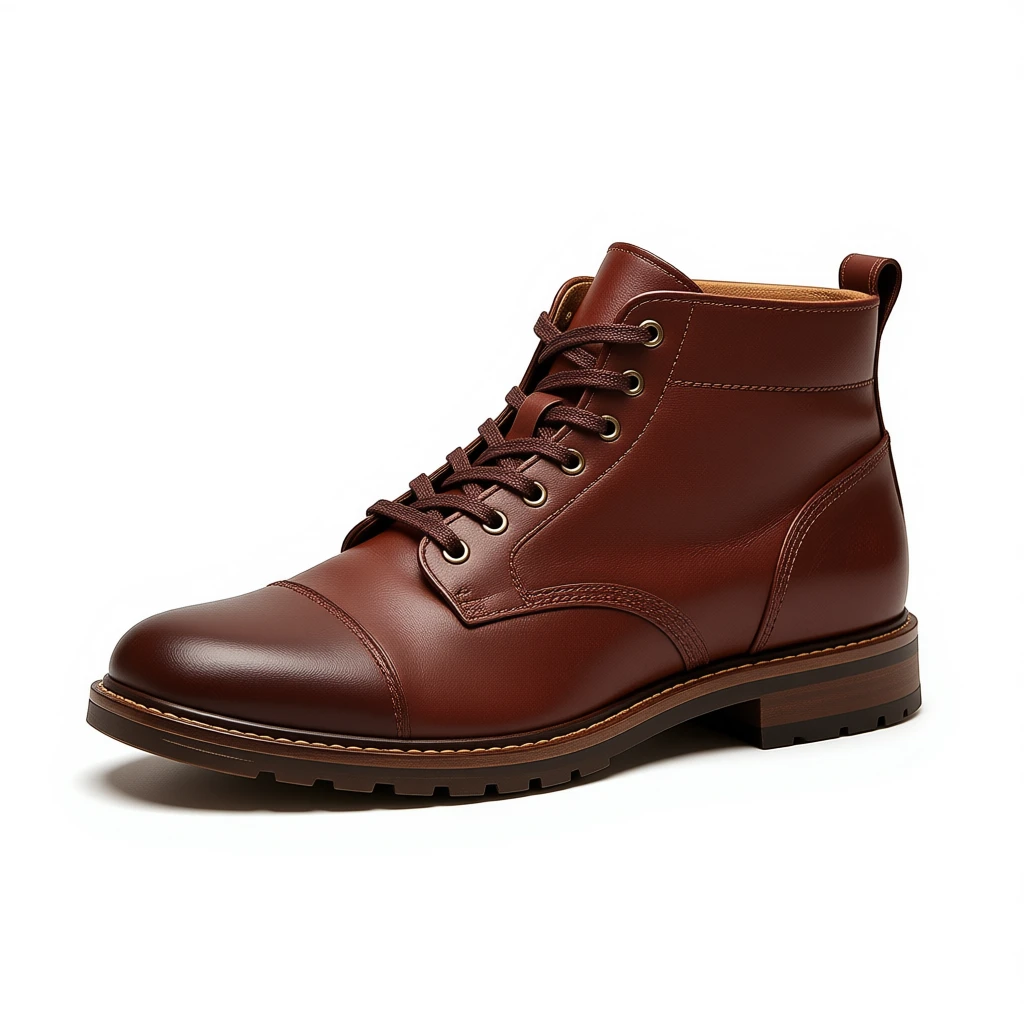
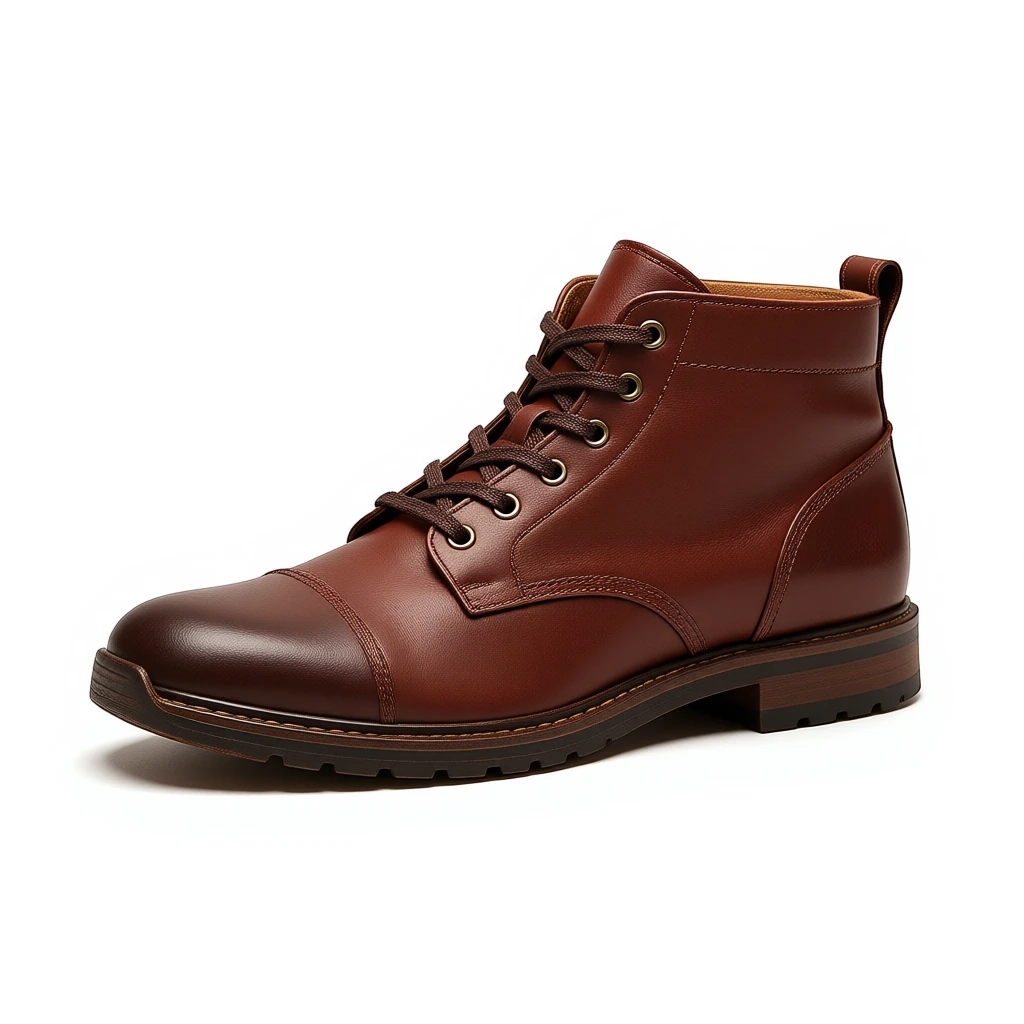
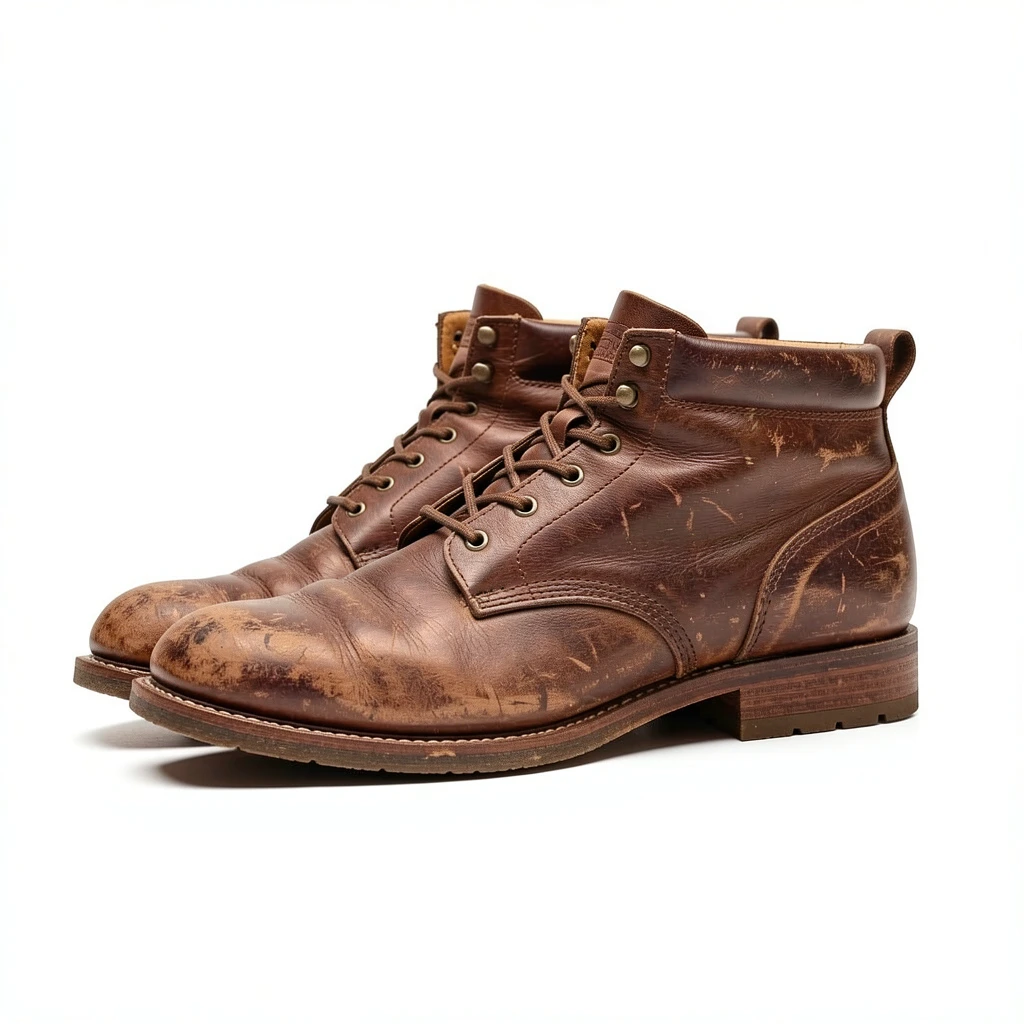
Object replacement: red sneaker → leather boots. Faithful edits at all speeds.
Style transfer
“Transform into a watercolor painting”




Style transfer: photo → watercolor. The effect is clearly applied at all speeds.
Outpainting with --fast
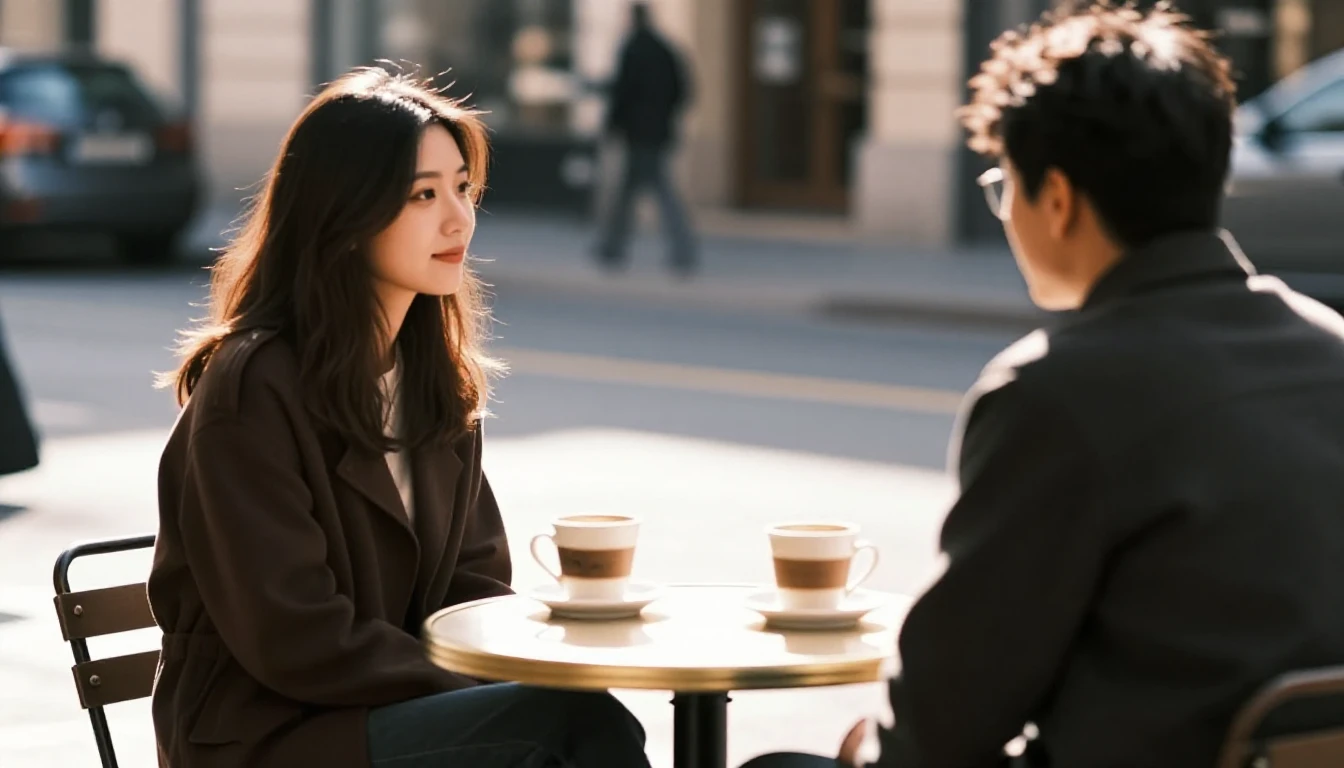
Extend an image canvas using modl edit --size. The edit model fills in the extra space coherently.
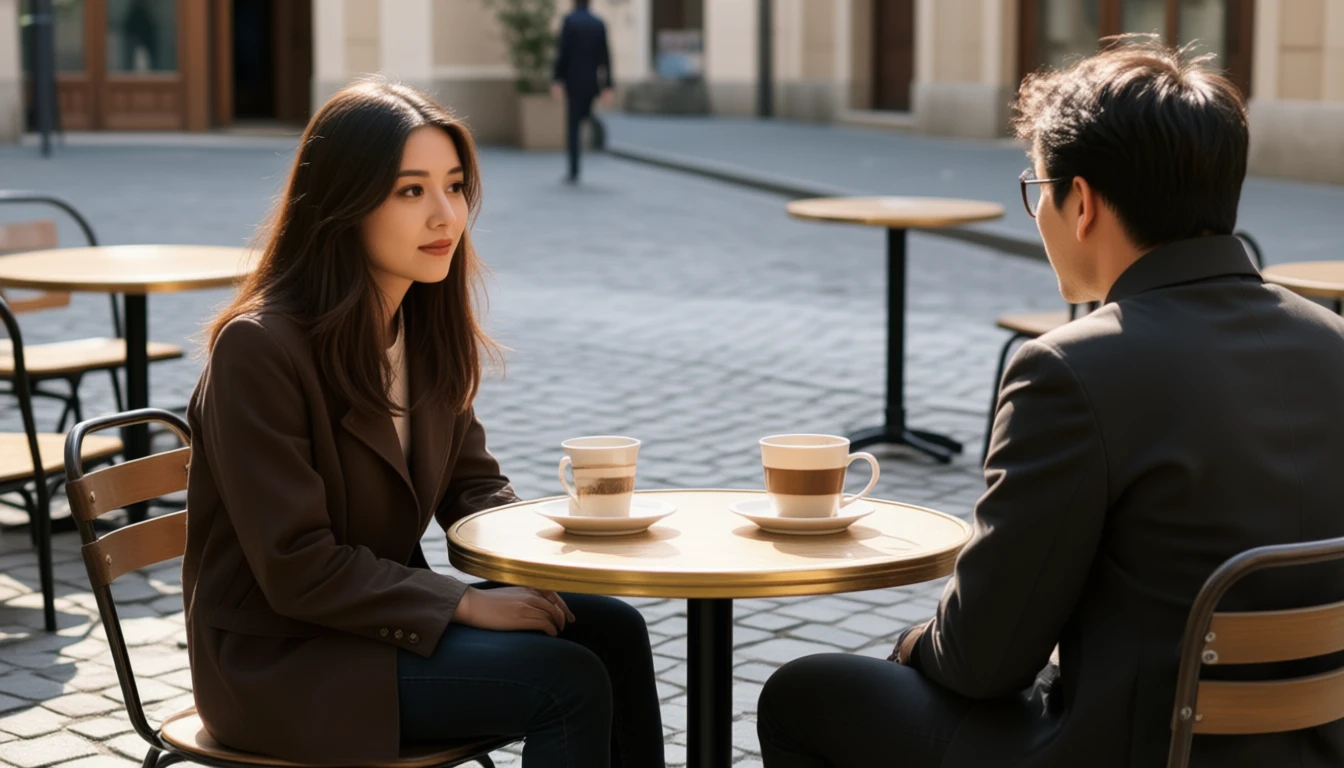
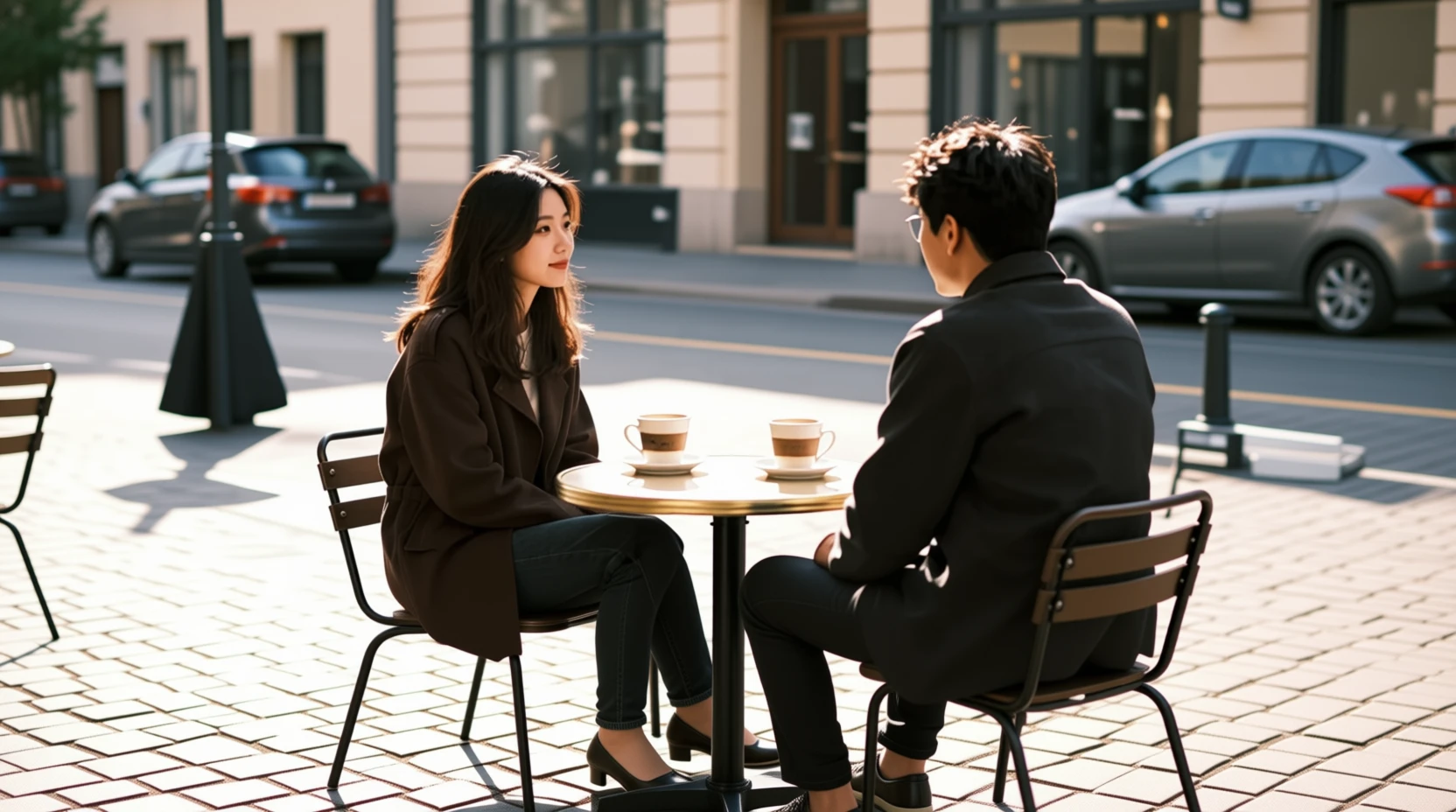
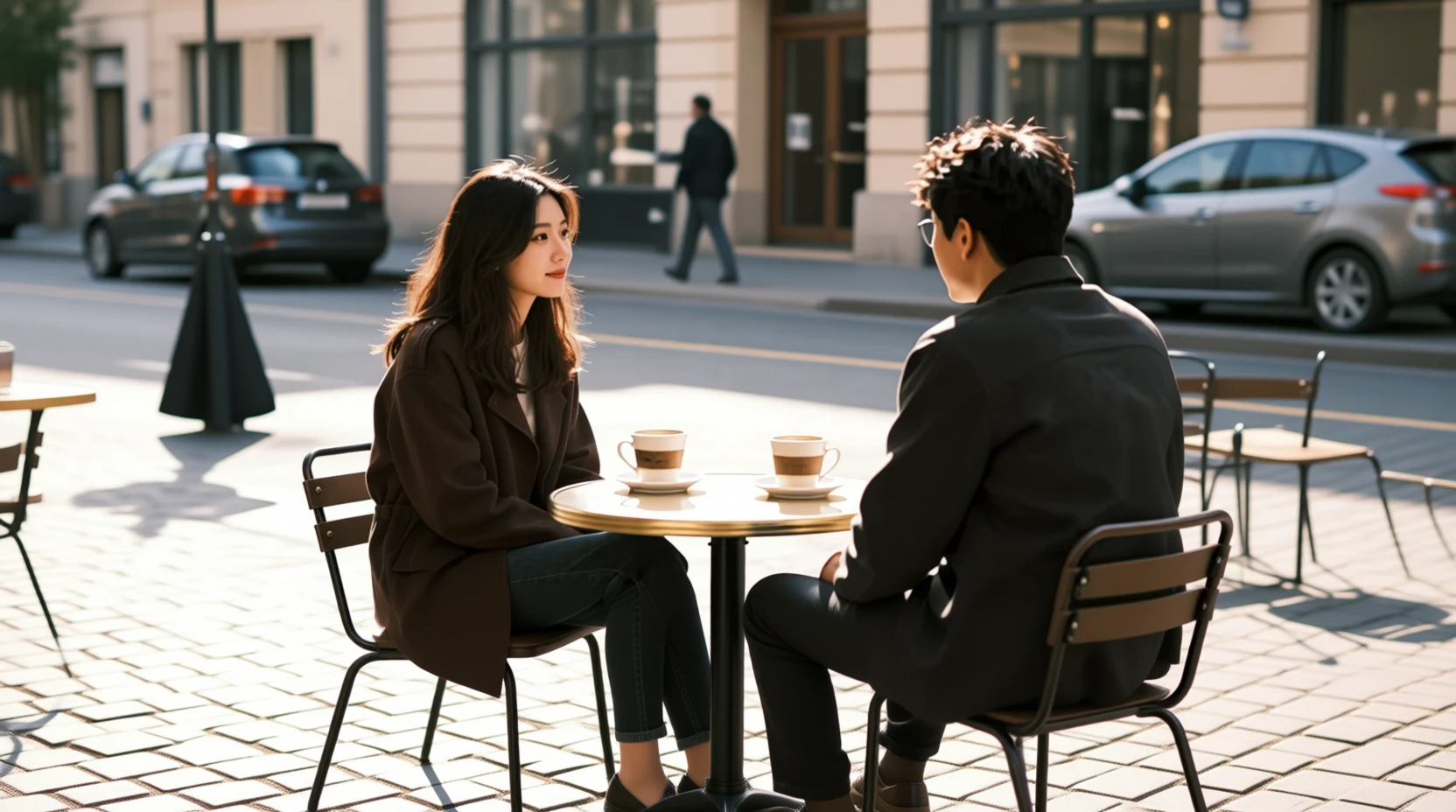
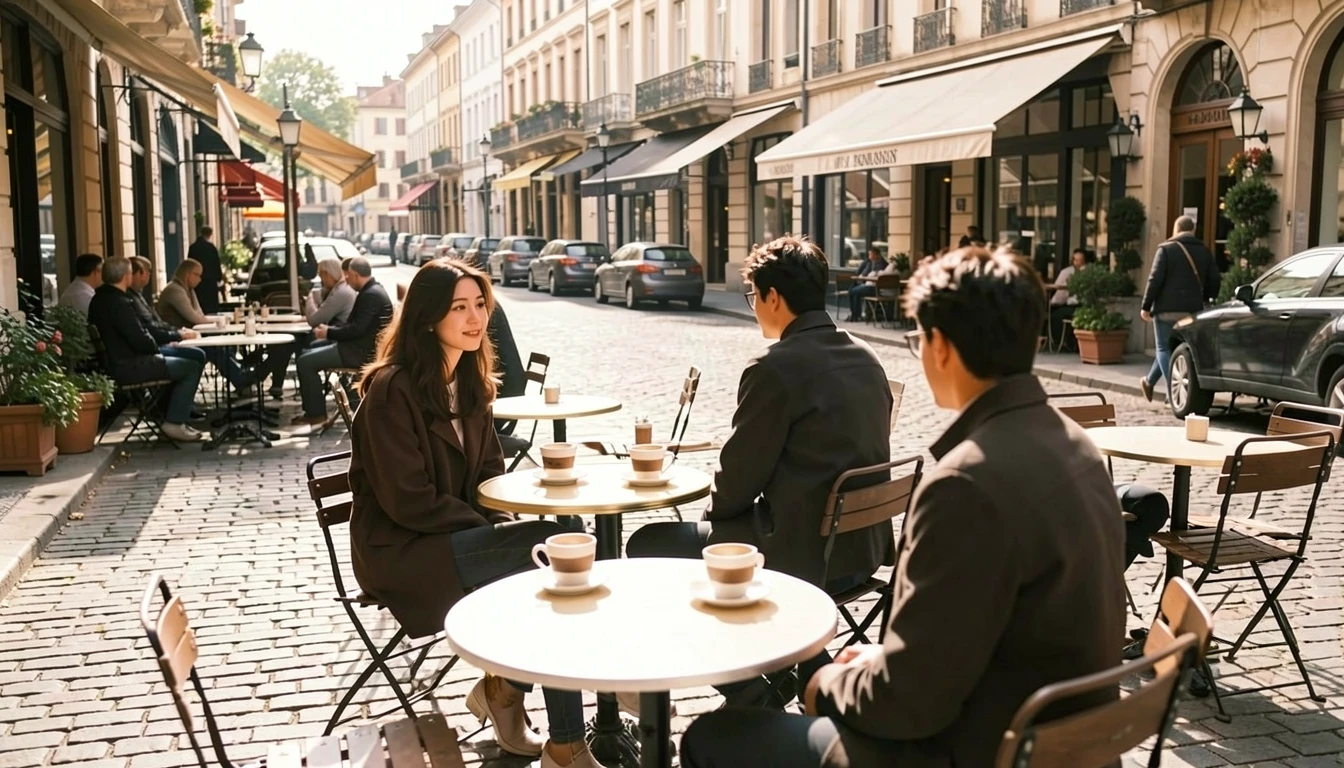
Outpainting: extending a cafe scene to 16:9 widescreen. All modes produce coherent extensions.
Where --fast struggles
The distillation trades detail for speed. Prompts that work well at 50 steps can degrade at 4:
- Dense small text — subtitle lines, fine print, multi-paragraph text. Use
--fast 8instead. - Hair-like fine textures — fur, beard stubble, intricate fabric weave. May appear slightly softer or oversharpened.
- Highly complex compositions — many subjects with detailed interactions. The model has fewer steps to resolve spatial relationships.
For these cases, --fast 8 recovers most of the detail. If quality is critical, use normal mode.
When to use what
--fast 8Text-heavy output, final renders at speedMinimal loss, ~6x faster —fast currently supports qwen-image and qwen-image-edit. Other models like Z-Image Turbo and Klein 9B are already distilled at training time — they run at 4 steps by default, no LoRA needed.
Explore from here
- Which model should I use? — Full comparison of all supported models
- Getting started — Install modl and generate your first image
- Structural editing — Advanced editing with ControlNet