Caption, Tag & Detect Objects
Find objects by name, generate captions, and auto-tag images using Qwen3-VL. Three commands that bridge language and image understanding.
The Upscale, Restore & Score guide covers commands that work on pixels and coordinates — score, detect, segment, upscale, remove-bg. They’re powerful but they don’t understand language. You can’t say “find the coffee cup” — you need to know the coordinates.
These three commands close that gap. They use Qwen3-VL, a vision-language model that understands both images and text:
- modl vision ground — find objects by name, get bounding boxes
- modl vision describe — generate natural language captions
- modl vision tag — automatically label images with tags
All three support --model qwen3-vl-2b (fast, 4GB VRAM, default) or --model qwen3-vl-8b (higher quality, 16GB VRAM).
modl vision ground
What it does: Finds objects by name. Give it a text query and an image — it returns bounding boxes for every matching object.
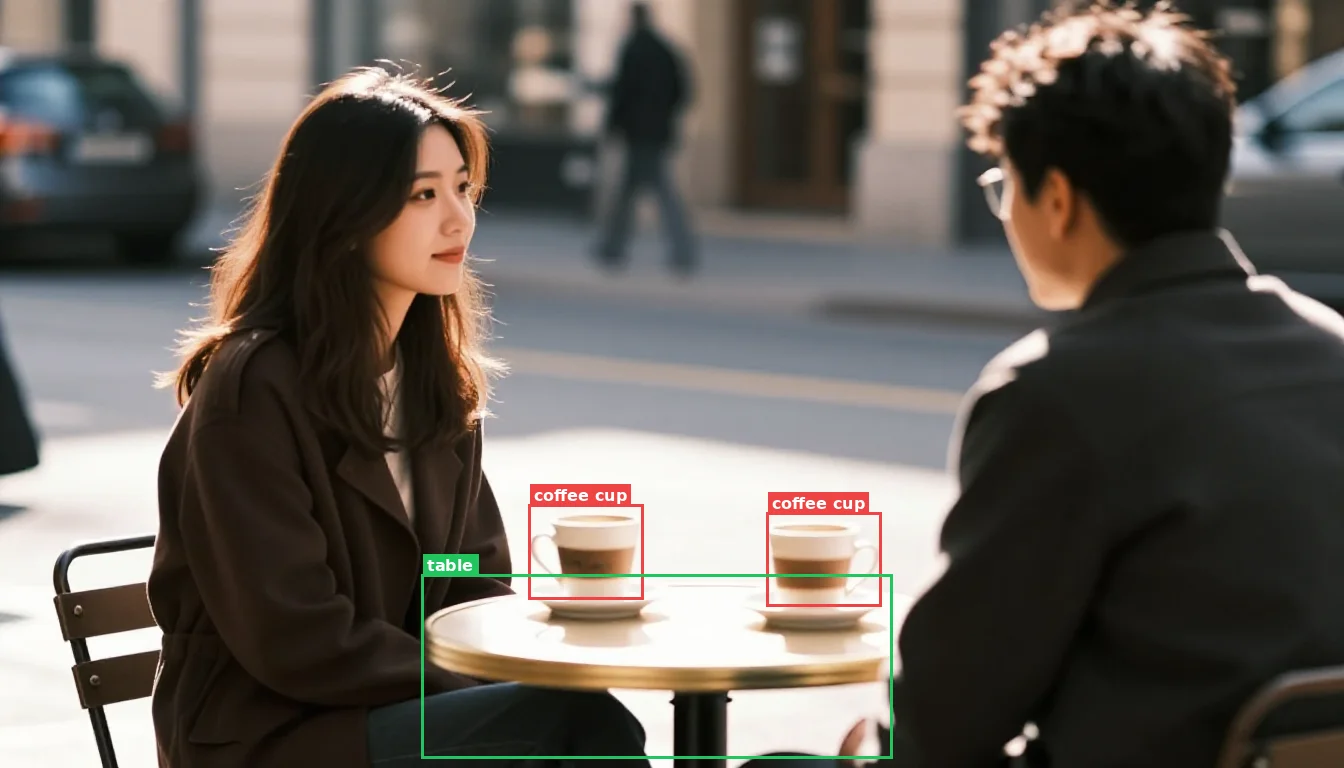
modl vision ground found both cups by text query. Unlike SAM which needs pixel coordinates, ground understands what 'cup' means.
The ground → segment → inpaint pipeline
This is the key workflow that ground enables. Let’s walk through replacing the coffee cups with glasses of wine — entirely from the command line.
Step 1 — Find the objects. modl vision ground takes a text query and returns bounding boxes. The query "cup" finds both cups — "coffee cup" only found one:
Step 2 — Create the mask. Ground returns tight bounding boxes around the cup bodies — but not the saucers underneath. For inpainting, the mask needs to cover everything you want replaced, with padding for the model to blend. We merge both bboxes into one region and expand:
Step 3 — Inpaint. Pass the original image, the mask, and a prompt. Use --size 1344x768 to match the original dimensions:
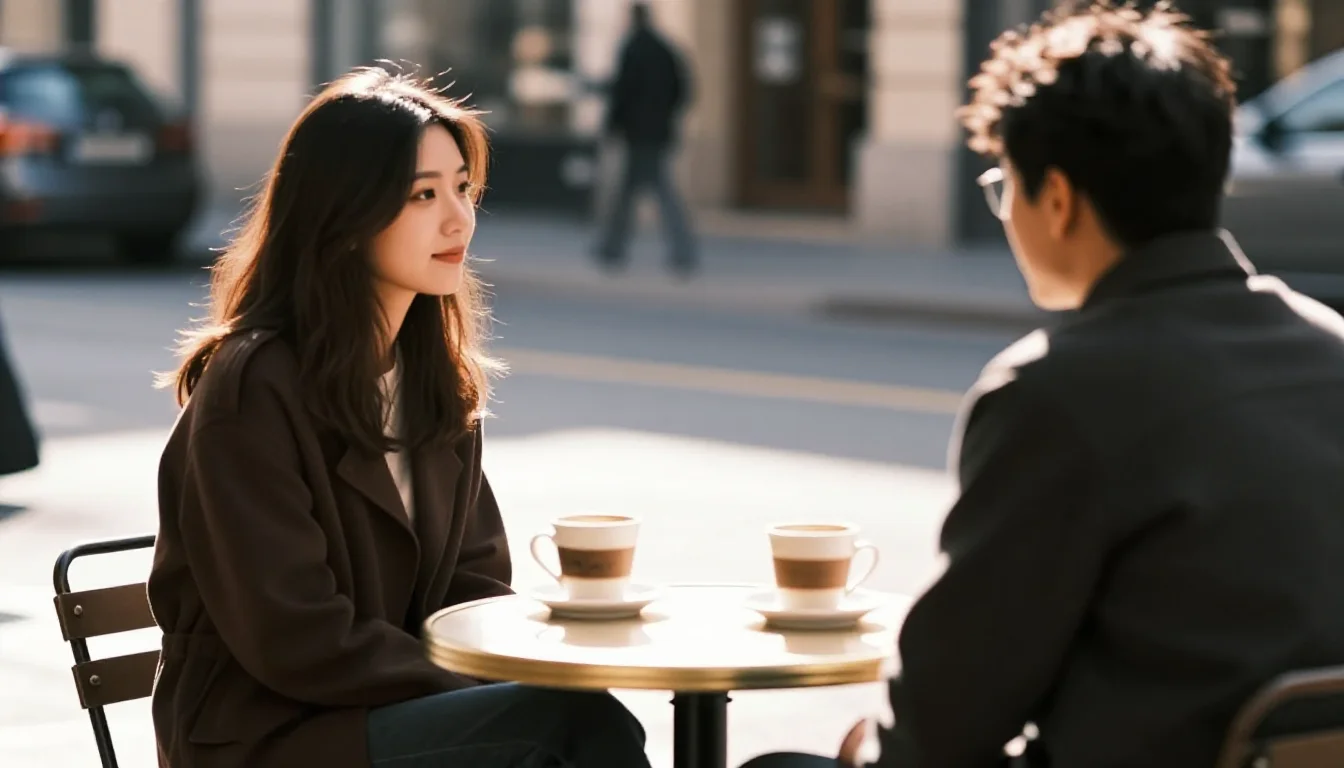
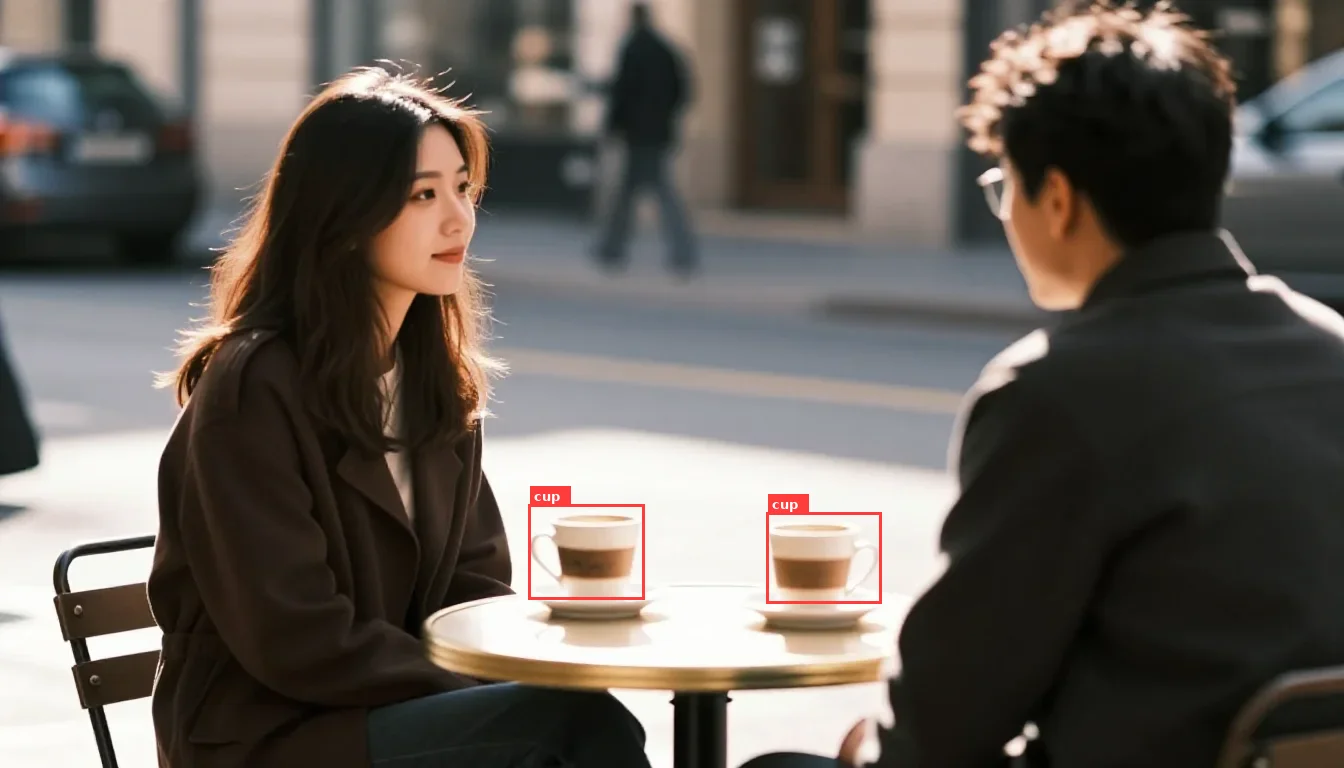
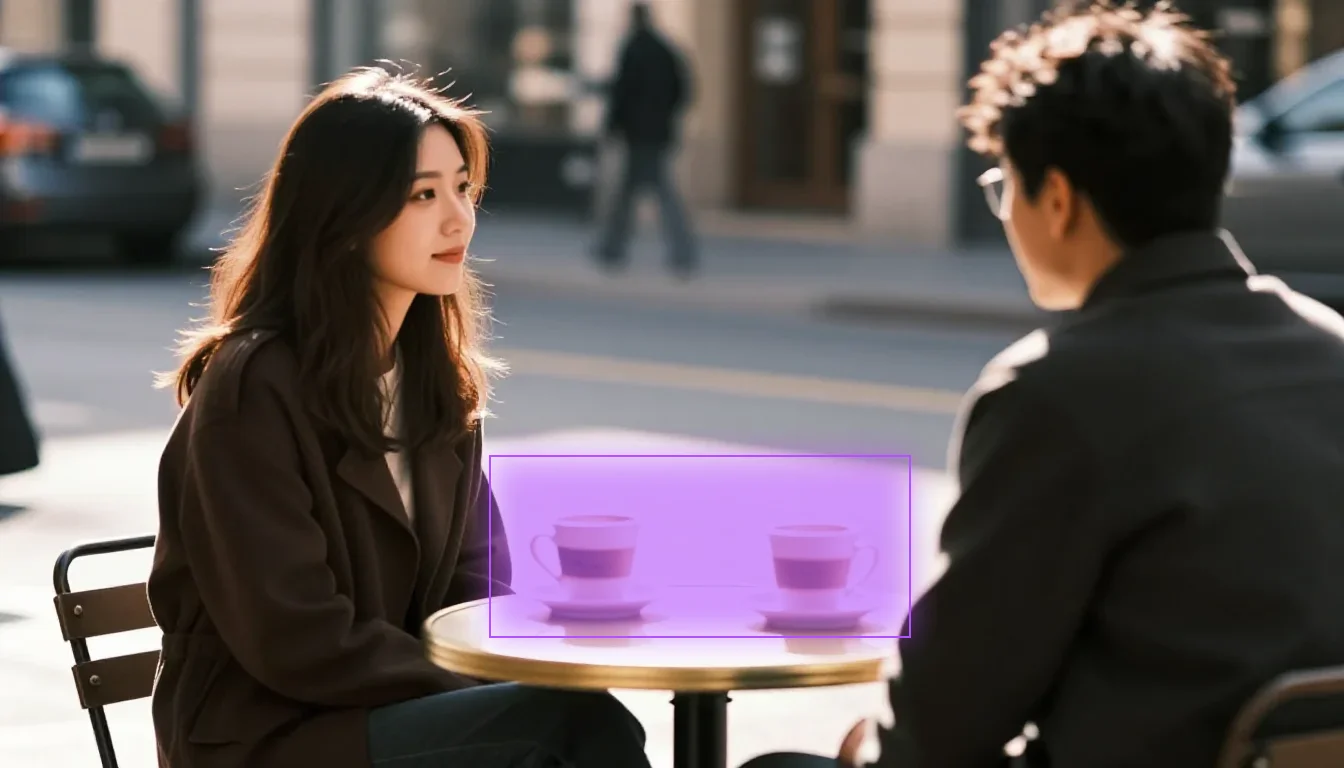

Three commands: ground finds objects by name, segment creates a padded mask from the merged bboxes, generate fills the region.
What we learned building this pipeline
Getting clean inpainting results took several iterations. Here’s what we found:
Ground bboxes are tighter than you’d expect. The bbox wraps the visible cup body — not the saucer, not the shadow. If you expand just the cup bbox and inpaint, the saucer bleeds through underneath because it was never fully masked. For clean replacement, the mask must cover the entire object including its base.
Query wording changes what ground finds. "cup" found both cups. "coffee cup" found only one. Shorter, more generic queries cast a wider net. Start broad and narrow down.
--expand is a balancing act. Too small (30px) and the model doesn’t have room — it just regenerates a similar cup. Too large (60px) and the feathered edge bleeds into the neighboring cup, causing the model to replace both. The Gaussian blur extends well beyond the expand value, so nearby objects can be affected even when they seem safely outside the rectangle.
Merging bboxes works better than single-object masks when objects are close together. Rather than fighting with expand values to isolate one cup, it’s simpler to merge both bounding boxes into one mask region and replace everything at once.
Descriptive prompts fix artifacts. The model fills the entire masked region, not just where the object was. With a wide mask and a vague prompt like "two glasses of wine", it hallucinated stacked plates to fill the empty table area. Adding "on a clean cafe table, nothing else" told the model to leave the rest empty — same mask, clean result. When inpainting goes wrong, try improving the prompt before shrinking the mask.
Flux Fill Dev produces the best results but needs room. It’s a dedicated inpainting model with 384 input channels — run modl pull flux-fill-dev to install it. Modl automatically routes to it when a mask is provided.
An AI agent can run this entire pipeline autonomously — it just needs a text instruction like “replace the coffee cups with wine glasses.”
modl vision describe
What it does: Generates a natural language description of an image. Three detail levels for different use cases.
The cafe reference image used for all describe examples below.
Detail levels:
- brief — one sentence, good for dataset captioning
- detailed — structured paragraphs with people, objects, setting (default)
- verbose — everything visible including colors, spatial relationships, mood
Use cases
Dataset captioning — modl dataset caption --model qwen uses describe under the hood for higher quality captions than Florence-2 or BLIP. Better captions = better LoRAs.
Agent understanding — let an AI agent “see” what was generated and decide if it matches the prompt.
Compare output to intent — describe the generated image and check if it matches what you asked for.
--detail brief to get concise factual descriptions. For agent workflows, use --detail detailed to give the agent enough context to make decisions. modl vision tag
What it does: Automatically labels an image with relevant tags — objects, concepts, mood, setting.
Use --max-tags 5 to limit the count. Useful for:
- Organizing outputs — auto-tag your generation gallery
- Filtering batches — find all images with “person” or “landscape”
- Search indexes — build searchable metadata for large output collections
Choosing a model size
All three commands default to qwen3-vl-2b (2B params, ~4GB VRAM). For higher accuracy, use --model qwen3-vl-8b (8B params, ~16GB VRAM):
When to use 8B:
- Complex scenes with many small objects
- Queries that require fine-grained understanding (“the second cup from the left”)
- Detailed captions where accuracy matters (dataset captioning for production LoRAs)
When 2B is enough:
- Simple object queries (“person”, “table”, “car”)
- Brief captions
- Tagging
- Any time inference speed matters more than perfect accuracy